Changing notification haptics on Apple Watch
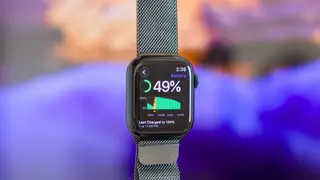
Apple Watch notification vibration can be set to Off, Standard, or Distinct. The setting is available on the watch under Settings > Sounds & Haptics > Haptics, or in the iPhone’s Watch app under My Watch > Sounds & Haptics > Haptics. Digital Crown feedback and system haptics can only be turned on or off, not customized.
Apple Watch owners can choose how notification alerts feel by picking one of three haptic modes. The default, Standard, produces two pulses, while Distinct delivers one extended buzz followed by two brief ones. Off removes notification vibration altogether. The same choice appears both on the watch and in the paired iPhone’s Watch app.
Separately, the watch uses haptics for the Digital Crown and for system feedback. These are not customizable beyond on/off. System haptics may confirm gestures such as double-tap and wrist actions. The controls sit in the System Sounds & Haptics area.
This setting may matter most to Apple Watch wearers who rely on wrist taps for alerts, including those in noisy settings or with hearing-related needs. Changing the pattern or turning vibration off could improve comfort and reduce distraction, while also helping some users avoid missed notifications. Because changes are device-level and reversible, broader social impact is likely limited to personal accessibility and attention management rather than sweeping change.