A Quick Guide to Identifying Your PC's Motherboard
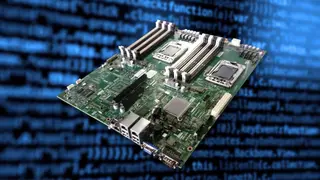
This guide explains how to find a computer's motherboard model before upgrading components or troubleshooting issues. On Windows, users can open System Information with msinfo32 and look for the BaseBoard Manufacturer, Product, and Version entries. It also covers Command Prompt, CPU-Z, macOS, and Linux methods.
Knowing the motherboard model matters before CPU, RAM, or BIOS changes, since the board governs which parts a system can support. It can also help when diagnosing performance problems in games.
On Windows, System Information via msinfo32 lists BaseBoard Manufacturer, Product, and Version. Command Prompt can return manufacturer, model, version, and serial number. CPU-Z’s Mainboard tab adds chipset, BIOS, and graphics-interface details. The article also points to macOS and Linux methods.
This guide could help PC gamers, DIY builders, and prebuilt owners identify hardware before upgrades or troubleshooting. By making motherboard details easier to retrieve, it may reduce confusion around compatibility, drivers, and BIOS updates. Repair technicians and support agents might also benefit if users can provide accurate model and serial information. The broader effect may be modest but practical: fewer misidentified parts and smoother hardware maintenance for everyday users.