Checking and Updating Your GPU Drivers on Windows
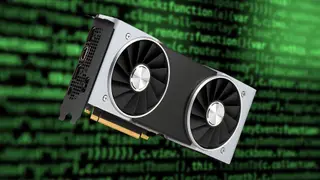
The article describes how PC users can identify their installed graphics card through Device Manager or Task Manager. It then explains updating drivers using Device Manager, Windows Update, or official NVIDIA, AMD, and Intel software. Keeping drivers current can improve game stability and frame rates while reducing stuttering and crashes.
Graphics card drivers are needed for a GPU to run correctly, and for PC gamers they influence performance, stability, and FPS. On Windows 10 or 11, users can identify installed hardware by opening Device Manager and expanding Display Adapters, or by checking the GPU entry in Task Manager's Performance tab.
Updates can be sought through Device Manager's automatic search, through Windows Update, or through manufacturer tools such as NVIDIA App, GeForce Experience, AMD Software, and Intel Driver and Support Assistant. These utilities detect the GPU, install suitable drivers, and may also address bugs and improve gaming performance.
This guide could help PC users, particularly gamers, address stuttering, crashes, and uneven frame rates by keeping graphics drivers current. It may also encourage more people to use built-in Windows tools or official manufacturer utilities instead of relying solely on forums or support services. Over time, wider driver literacy could reduce some common troubleshooting friction, though results may vary by hardware, software, and user comfort.