Making use of the HDMI port on a Ugreen NAS
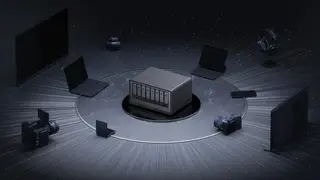
Ugreen NAS units include an HDMI output that can connect directly to a monitor, projector, or TV. Playing stored media through that connection requires the Ugreen phone app, which acts as a remote and casts content to the screen. With a keyboard attached, the port also provides access to the NAS BIOS and a terminal.
Ugreen's NAS HDMI output can feed a monitor, projector, or television. For stored media, the Ugreen phone app serves as the controller: it casts content over the cable and then handles playback navigation. Because the hardware lacks a dedicated remote, the app is required for this viewing setup.
With a keyboard and display attached, the same port reaches lower-level system tools. Users can enter BIOS by pressing Ctrl and F12 during startup, then disable Watch Dog Control under Advanced to stop automatic reboots. Some owners report terminal access with Ctrl Alt F1, though keys vary by model; SSH remains the documented route.
This may matter most to home NAS owners, media enthusiasts, and small offices seeking local control over files. A direct HDMI option could reduce reliance on streaming sticks or smart TVs, while phone-as-remote design may frustrate users wanting simple playback. Advanced BIOS/terminal access could help tinkerers recover or customize devices, but may also raise risks if misused. Overall, it reflects growing convergence between storage hardware and personal computing.